
Import or add a hotel
If you use the hotel module, you can add your hotels via the blue 'Hotels' menu.
There are two ways to add your hotels. You can import one of your default hotels or add a new hotel using the 'Import hotel' or 'Add hotel' buttons.
To import hotels, you must create default hotels. Please click here for more information about default hotels.
If you choose to import one of your default hotels, you can select it from a pulldown menu. All hotel details are imported, such as the address, general room information, classification, uploaded images, and the contact person.
All hotel data will be pre-filled, but you can make changes for this congress only.
If you choose to 'Add hotel', you can enter all data yourself.
You can add the Hotel details, such as the classification (up to 5 stars), the number of rooms and the number of beds. At the 'Finances' section you can add the hotel’s currency, VAT and bank account details. VAT numbers can also be validated. All this information is for your own use; it is not displayed to your participants.
You can add the hotel's address in the section for Hotel address. This address can be printed on the hotel booking details confirmation.
After saving these hotel details, you will be asked whether you want to set up the allotment for this hotel.
You will be automatically directed to the 'Options' tab. Here, you can select the checkbox to use the allotment for this hotel and create the number of rooms per date.
Hotel availability can be managed either at hotel level using a hotel allotment or separately for individual rooms using room options.
Whenever someone books a room, Eventure checks whether sufficient availability exists for every night of the requested stay.
When using a hotel allotment, you can choose which rooms are included. Rooms that are excluded can still have their own separate room options. For example, if the hotel you are using for your congress only has 10 Executive rooms, you might want to exclude them from your allotment of the single and double rooms.
Once the allotment options are saved, a 'Block reservation' room is created. This room is used when your group module uses pre-bookings.
On the 'Settings' tab you can exclude this room from the invoices if this block reservation is a free room.
At the last tab 'Group booking requests' an overview of all the booking requests is displayed. If new bookings are listed, you can also approve or reject them here.
Add rooms
You can now add rooms to this hotel. To do so, return to the hotel's 'Hotel information' tab.
Use the green 'Add room' button in the center of the screen.
When adding a room, you are first giving the choice to create a new room or copy a default room.
If you choose to import one of your default rooms, you can select it from a pulldown menu. The room name, the upper and lower texts, and the uploaded images will be copied. You still need to enter the bookable dates, the price, deposit and the other settings.
In the room details, you can enter the Start date (earliest arrival) and the End date (latest departure). These dates are the dates on which participants can book a room. These dates may differ from the hotel options availalbe; for instance, you can use the options outside this date range yourself to make bookings via the back office for staff or special guests.
Settings tab of the room
On the 'Settings' tab you can set the visibility and if you have a free room, you can exclude this room from the invoices.
At the room settings section you can set a minimum nights required for this room and if room sharing is allowed.
You can also limit the availability for this room and add the maximum number of rooms of this type.
If the room sharing checkbox is selected, the 'Room sharing' field will be displayed on the 'Hotel bookings specifications' page when the participant books this room.
Options tab of the room
When your room is included in the hotel's allotment, it is displayed as shown in the screen below.
If your room is not included in the hotel's allotment, the available options are displayed as shown in the screen below.
Please note that even if your hotel operates using an allotment, you can also add rooms that are not part of that allotment. For example, if a hotel only has three Honeymoon suites, this room type requires its own options.
Bookings tab of the room
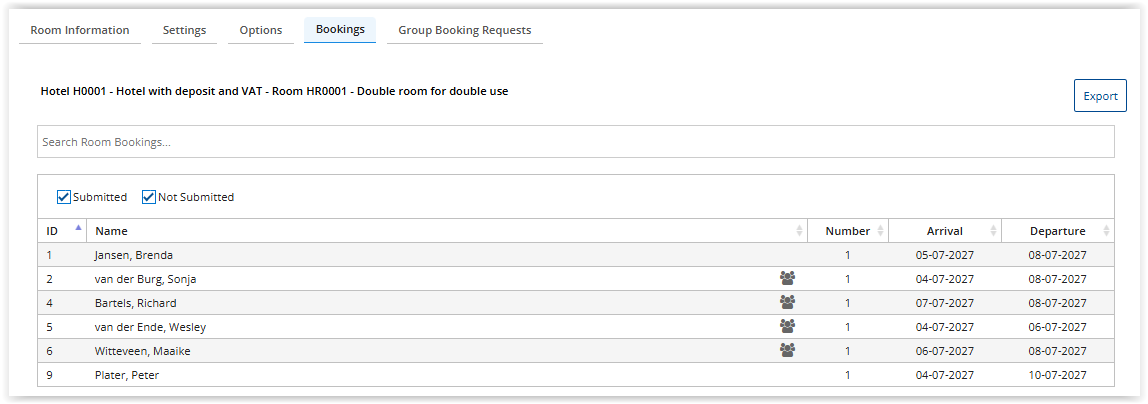
The 'Bookings' tab for the room lists all participants who have booked this room, including the not submitted participants. Use the 'Export' button to export an excel of all the bookings of this hotel.
Use the 'Export' button to create an excel file with all participants that booked a room in this hotel.
Group booking requests tab
The 'Group booking request' tab for the room displays all group requests. If new bookings are listed, you can also approve or reject them here.
Comments
0 comments
Please sign in to leave a comment.